Introduction
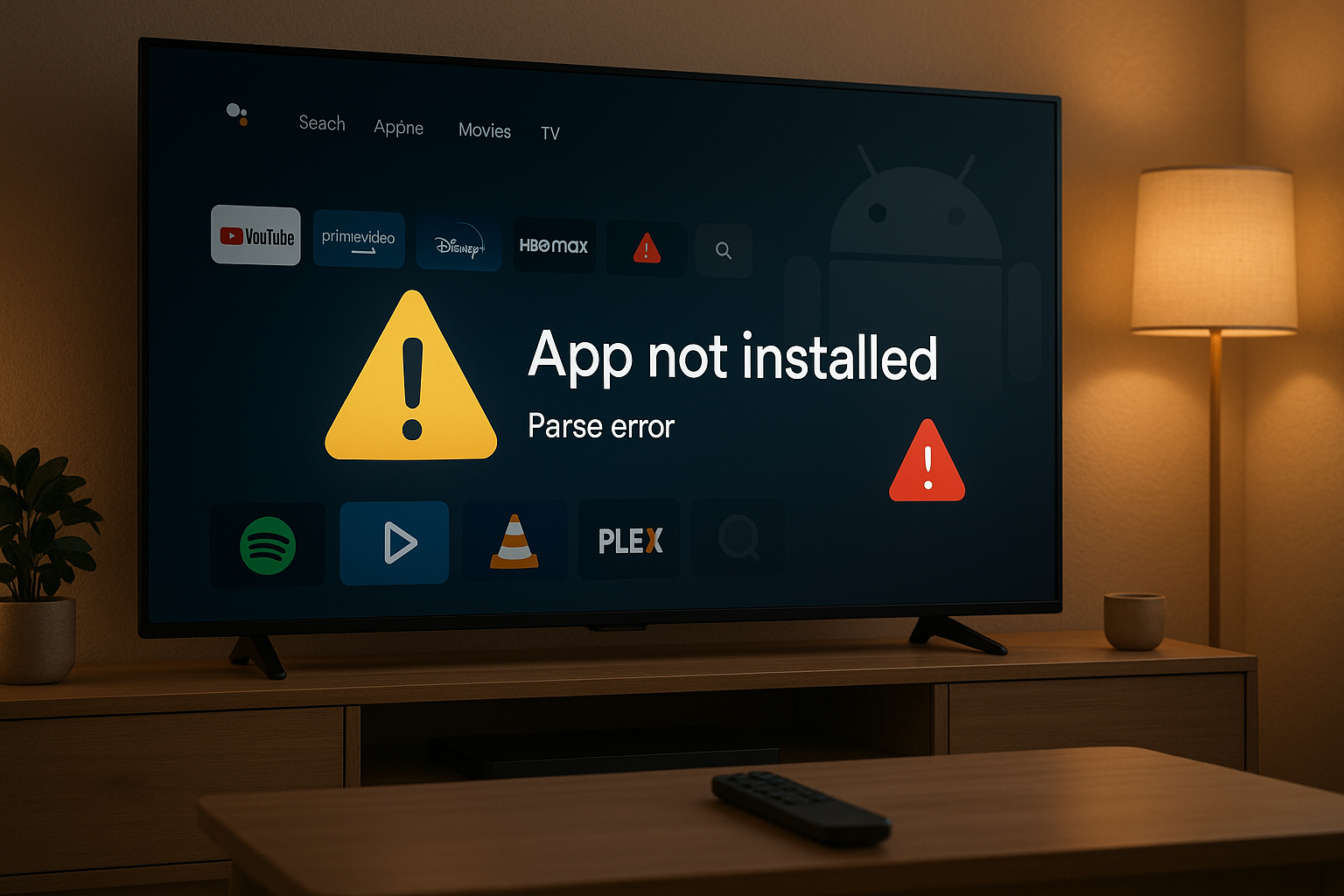
Installing APKs on Android TV is one of the best ways to access apps that aren’t available on the Play Store — but it’s not always smooth sailing. Users often encounter errors like “App not installed,” “Parse error,” or “Install blocked.”
Whether you’re sideloading via USB, using Downloader, or pushing APKs through your phone, this guide will walk you through the most common Android TV installer errors and how to fix them easily.
1. “App Not Installed” Error
This is the most common issue when sideloading apps on Android TV. It usually happens when the app’s architecture, version, or signing doesn’t match your system.
Common Causes
- APK built for the wrong architecture (e.g., ARM vs x86).
- App conflicts with an existing version.
- Corrupted or incomplete APK download.
- Installation from an untrusted source is blocked.
Fixes
- Check Architecture Compatibility
- Go to Settings → Device Preferences → About → Build to confirm your device type (usually ARM64).
- Download the APK version that matches your TV’s CPU (ARM, ARM64, or x86).
- Uninstall Previous Versions
- If an older version of the app is installed, uninstall it first.
- Then reinstall the new APK using File Commander, X-plore, or Downloader.
- Re-download the APK File
- Corrupted files are common when transferring via USB or downloading on slow Wi-Fi.
- Re-download from a verified source like APKMirror or APKPure.
- Clear Package Installer Cache
- Go to Settings → Apps → Show System Apps → Package Installer → Clear Cache & Data.
2. “Parse Error: There Was a Problem Parsing the Package”
What It Means
This error indicates that Android TV can’t properly read the APK file — usually due to a bad download, wrong Android version, or signature mismatch.
Fixes
- Ensure the APK Supports Your Android TV OS Version.
Apps designed for Android 12+ may fail on Android 9 or 10 TVs. - Avoid Renaming the File.
Changing filenames sometimes breaks the package recognition. - Re-download the File from a Reliable Source.
Corrupted files trigger parsing errors more often than not. - Enable “Install Unknown Apps.”
- Go to Settings → Apps → Special App Access → Install Unknown Apps.
- Allow permissions for your installer app (e.g., Downloader, X-plore, or File Commander).
3. “Install Blocked by Play Protect” Warning
Google Play Protect occasionally flags sideloaded apps as unsafe, even if they’re legitimate.
Fixes
- Temporarily Disable Play Protect Scanning:
- Open Play Store → Profile Icon → Play Protect → Settings → Turn off “Scan apps with Play Protect.”
- Install your APK, then re-enable Play Protect afterward.
- Use a Trusted Source:
- Stick to reputable APK repositories like APKMirror, Uptodown, or ApkPure.
4. “Storage Space Running Out” Error
Even if you think your Android TV has enough storage, cache and hidden system data can block new installations.
Fixes
- Clear App Cache and Data:
- Settings → Apps → [App Name] → Clear Cache & Data.
- Uninstall Unused Apps:
- Remove old or preinstalled apps you don’t use.
- Use External Storage (USB Drive):
- Format your USB drive as Device Storage and move apps there.
- Settings → Device Preferences → Storage → Format as Device Storage.
5. “App Not Compatible with Your Device” Message
Why It Happens
The APK may be meant for phones or tablets, not Android TV. Some developers disable TV interfaces in their apps.
Fixes
- Use a “TV-Compatible” APK Variant:
Search for versions labeled “Android TV” or “leanback-supported.” - Try a Third-Party Launcher:
Some non-TV apps install fine but don’t appear on the home screen. Use launchers like Sideload Launcher or HALauncher to access them. - Force Landscape Mode:
Some phone apps crash due to portrait-only layouts. Use tools like Set Orientation to fix display issues.
6. Installation Fails with “Signature Conflict”
This happens when the APK you’re installing has a different signing key from an existing version of the app.
Fixes
- Uninstall the App First:
- You can’t overwrite an app signed by a different key.
- Go to Settings → Apps → [App Name] → Uninstall.
- Download from the Same Source:
- Always update apps from the same site or developer to avoid mismatched signatures.
7. “Can’t Open File” or “Invalid File Type”
Causes
- You’re using a file manager that doesn’t support APK installation.
- The APK extension was renamed or corrupted during transfer.
Fixes
- Use a Supported Installer:
- Recommended apps: X-plore, File Commander, FX File Explorer, or Downloader.
- Check the File Extension:
- Ensure it ends with
.apkor.apkm(for split APKs).
- Ensure it ends with
- For Split APKs (.apks/.xapk):
- Use APKMirror Installer or SAI (Split APKs Installer) to properly install multi-part APK bundles.
8. “App Keeps Crashing After Installation”
Sometimes the installation completes, but the app won’t run properly.
Fixes
- Check for TV Support:
- Some mobile-only apps crash when they detect a TV interface.
- Try an Older or Alternative Version.
- Downgrading can solve compatibility issues.
- Clear Cache/Data.
- Settings → Apps → [App Name] → Clear Data.
- Force Stop and Relaunch.
- This often fixes initialization errors.
9. Bonus: Using ADB to Install APKs Without Errors
If you’re tired of on-screen installers failing, use ADB (Android Debug Bridge) from your PC.
Steps:
- Enable Developer Options → Turn on ADB Debugging.
- Connect your PC and TV to the same Wi-Fi.
- Run these commands:
adb connect [TV_IP_Address]
adb install appname.apk
This method bypasses many installer-related bugs.
10. Pro Tips to Avoid Future APK Installer Errors
- ✅ Always match Android version + CPU architecture.
- ✅ Keep “Unknown Sources” enabled for trusted apps only.
- ✅ Avoid modifying or renaming APK files.
- ✅ Maintain at least 1GB of free storage before installing.
- ✅ Use verified repositories to prevent malware or corrupt files.
Conclusion
Installing APKs on Android TV unlocks a world of apps beyond the Play Store, but errors can easily frustrate users. Thankfully, most installation problems — from “App not installed” to parsing issues — can be fixed by matching the right APK version, clearing installer cache, and using trusted sources.
With these fixes, you’ll be able to sideload confidently and enjoy any app your Android TV can handle.

