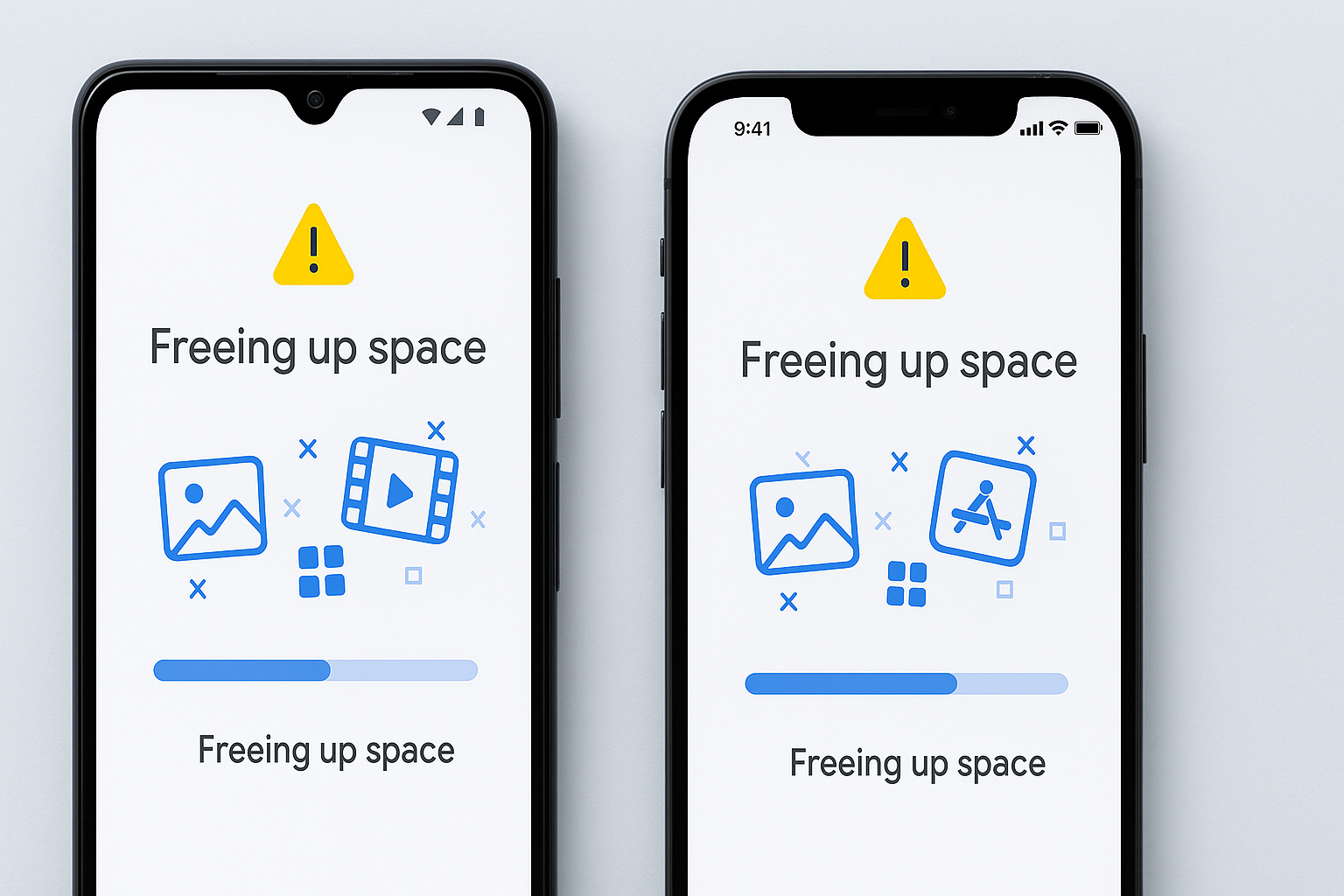
Is your phone constantly warning you that you’re “running out of storage”?
Don’t worry — it happens to everyone. Photos, videos, and unused apps can quickly fill up space and slow your device down.
Here’s how to free up storage on Android and iPhone in just a few minutes — no technical skills required.
1. Delete Unused Apps
Old apps take up valuable space even when you don’t use them.
On Android:
- Open Settings → Apps → Manage Apps
- Sort by Storage size
- Tap Uninstall on apps you don’t need
On iPhone:
- Go to Settings → General → iPhone Storage
- Tap any unused app → Select Delete App
💡 Tip: Enable “Offload Unused Apps” on iPhone to automatically remove apps you haven’t used recently (while keeping your data safe).
2. Clear Cache and Temporary Files
Cached data helps apps load faster, but it also builds up over time.
Android:
- Go to Settings → Storage → Cached Data → Clear Cache
- Or clear individual app caches in Settings → Apps → [App Name] → Storage
iPhone:
- Safari: Settings → Safari → Clear History and Website Data
- For other apps, uninstall and reinstall to remove temporary files.
3. Move Photos and Videos to Cloud Storage
Photos and videos are often the biggest space hogs.
- Use Google Photos or Apple iCloud Photos to back up your media.
- After uploading, safely delete local copies to free up space.
Helpful links:
👉 Google Photos
👉 iCloud Photos
4. Use Built-In Storage Tools
Android:
Many phones include smart storage features.
- Settings → Storage → Free up space (Google’s Files app helps too).
👉 Files by Google
iPhone:
- Settings → General → iPhone Storage shows recommendations like “Review Large Attachments” and “Offload Apps.”
5. Manage Downloads and Media Files
Delete old downloads, large videos, or music you no longer need.
On Android, check the Downloads folder.
On iPhone, open Files → On My iPhone → Downloads.
For streaming apps like Netflix or Spotify, clear offline content you’ve already watched or listened to.
6. Clean Up WhatsApp, Telegram, and Other Chat Apps
Messaging apps store tons of media files.
- In WhatsApp → Settings → Storage and Data → Manage Storage, delete large or forwarded files.
- On Telegram, use Clear Cache under Settings → Data and Storage.
7. Empty the Trash or Recently Deleted Folder
Deleted files still take up space until permanently removed.
- Android: Open your Gallery → Trash → Empty.
- iPhone: Photos → Albums → Recently Deleted → Delete All.
8. Transfer Files to a Computer or External Drive
If you prefer keeping files offline, connect your phone to a PC or Mac.
Transfer large videos, photos, or documents — freeing up gigabytes instantly.
Final Thoughts
Freeing up storage on your Android or iPhone doesn’t have to take hours.
With these quick fixes, you can reclaim space, boost performance, and make your phone feel brand new again.
Stay tuned to FobBlog for more easy tech guides, app reviews, and mobile tips.