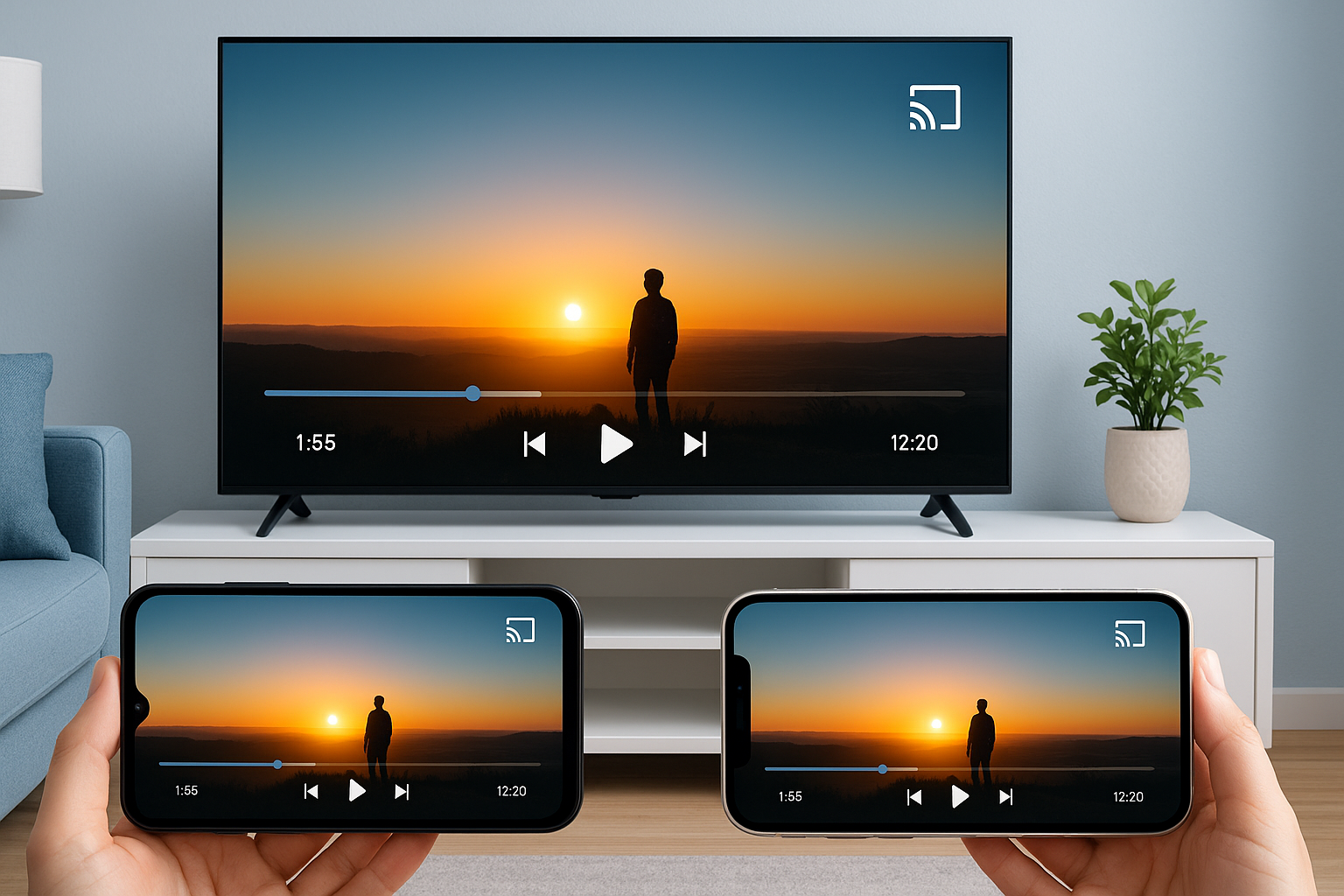
Want to watch videos, photos, or games from your phone on a bigger screen?
Connecting your smartphone to a TV is easier than ever — whether you’re using Android or iPhone.

In this guide, we’ll show you how to connect your phone to your TV using both wired and wireless methods, so you can choose what works best for your setup.
1. Connect Wirelessly with Chromecast (Android & iPhone)
Chromecast is one of the most popular ways to stream from your phone to your TV.
Steps:
- Plug the Chromecast device into your TV’s HDMI port.
- Connect both the TV and your phone to the same Wi-Fi network.
- Open YouTube, Netflix, or another supported app on your phone.
- Tap the Cast icon (📺) and select your TV.
✅ Works on both Android and iOS devices.
💡 Most modern TVs now have Chromecast built-in, so you may not need a separate dongle.
2. Use Screen Mirroring (Android)
Most Android phones have a built-in Smart View, Screen Cast, or Miracast feature.
Steps:
- Swipe down from the top of your screen to open Quick Settings.
- Tap Smart View, Cast, or Screen Mirroring.
- Select your TV from the list of available devices.
Make sure your TV supports Miracast or Wi-Fi Direct, and that both devices are connected to the same Wi-Fi network.
3. Use AirPlay (iPhone)
Apple users can mirror their iPhone or iPad to an Apple TV or AirPlay-compatible Smart TV.
Steps:
- Ensure both devices are on the same Wi-Fi network.
- Open Control Center on your iPhone.
- Tap Screen Mirroring → Select your Apple TV or Smart TV.
- Enter the AirPlay code shown on your TV if prompted.
💡 Works seamlessly with TVs from brands like LG, Samsung, and Sony that support AirPlay 2.
4. Connect with an HDMI Cable (Wired Option)
If your Wi-Fi connection is weak or you prefer a direct link, use an HDMI adapter.
For Android:
- Use a USB-C to HDMI cable (ensure your phone supports video output).
- Plug one end into your phone and the other into your TV’s HDMI port.
For iPhone:
- Use a Lightning Digital AV Adapter from Apple.
- Connect it to your phone and TV, then switch your TV’s input to the correct HDMI port.
Wired connections offer zero lag — ideal for gaming or presentations.
5. Use Streaming Devices (Alternative Options)
If your TV doesn’t have built-in casting features, you can use affordable devices like:
- Amazon Fire TV Stick
- Roku Streaming Stick
- Xiaomi Mi TV Stick
Each has its own screen-mirroring or casting option that supports Android and iOS apps.
6. Connect via DLNA or Smart TV Apps
Some Smart TVs include their own casting apps (like Samsung SmartThings or LG ThinQ).
These allow you to browse your phone’s photos or videos directly on the TV.
- Install the app on your phone.
- Link it to your TV via Wi-Fi.
- Share or stream media effortlessly.
Final Thoughts
Whether you’re watching Netflix, playing games, or showing vacation photos, connecting your phone to your TV gives you the best viewing experience.

From wireless streaming to simple HDMI cables, you have multiple easy ways to connect your Android or iPhone in just minutes.
For more mobile tips and step-by-step guides, visit FobBlog — your trusted source for practical tech help.