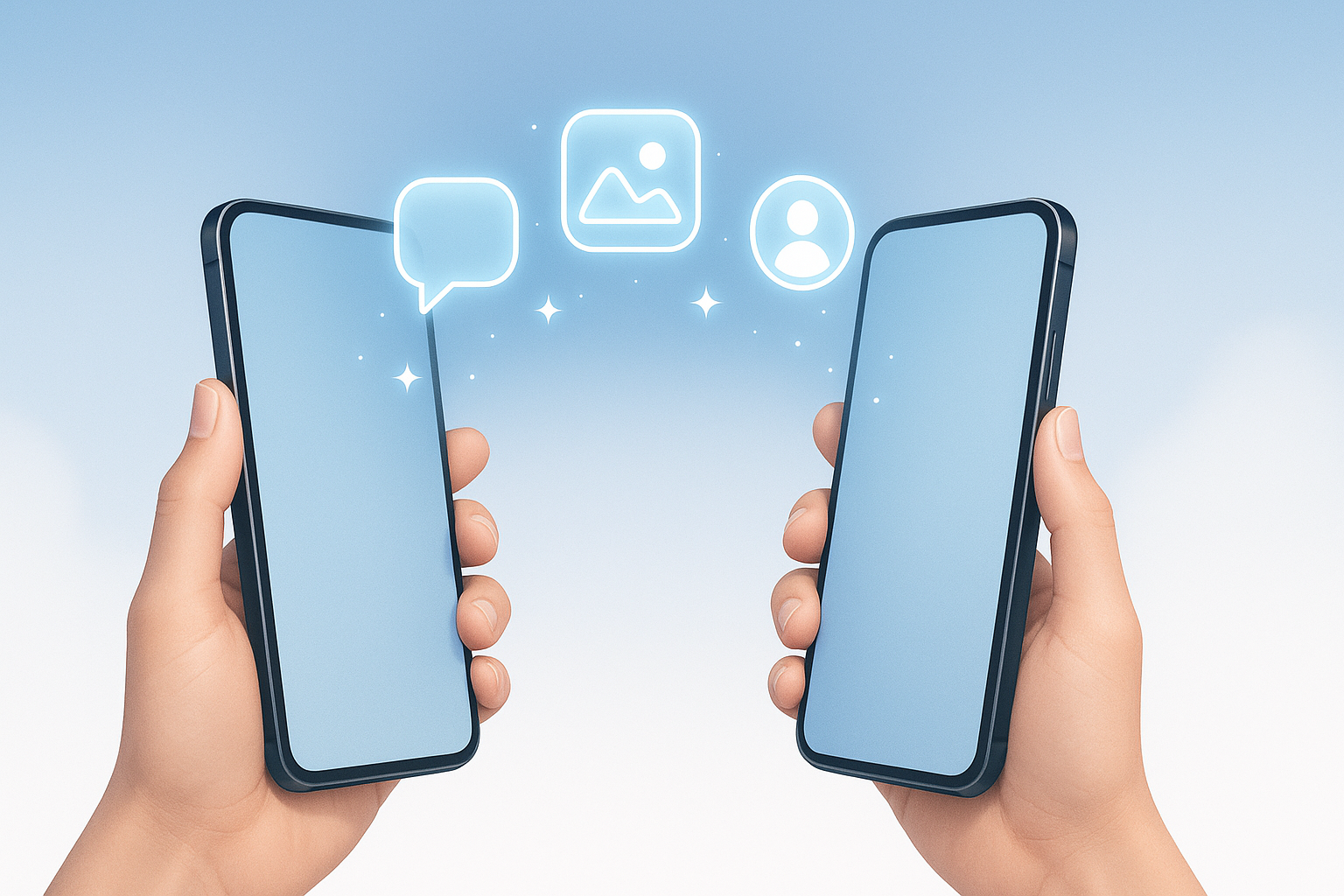
Getting a new smartphone is exciting — but transferring all your data, apps, photos, and settings can be stressful.
Thankfully, both Android and iOS now make it simple to move everything safely in just a few steps.
Here’s your easy guide to transfer apps and data to a new phone — no stress, no missing files.
1. Back Up Your Old Phone
Before you switch, make sure everything is backed up properly.
For Android:
- Go to Settings → Google → Backup
- Turn on Backup by Google One
- Make sure App data, Contacts, Photos, and Messages are included.
You can also back up photos and videos to Google Photos for extra safety.
For iPhone:
- Go to Settings → [Your Name] → iCloud → iCloud Backup
- Tap Back Up Now
Alternatively, you can use iTunes (on PC) or Finder (on Mac) to create a full device backup.
2. Use the Official Transfer Tool
When setting up your new phone, use the built-in tools designed by Google or Apple.
For Android to Android:
- Choose Copy Apps and Data during setup.
- Use a cable or Wi-Fi to connect both phones.
- Sign in with your Google account and follow on-screen steps.
For iPhone to iPhone:
- During setup, choose Quick Start.
- Hold your old iPhone near the new one.
- Scan the code and follow instructions to transfer all data wirelessly.
3. Moving from Android to iPhone (or vice versa)
Switching platforms? No problem.
Android → iPhone:
Use Apple’s Move to iOS app from the Google Play Store. It transfers:
- Contacts
- Messages
- Photos & videos
- Mail accounts
iPhone → Android:
Use Google’s Data Transfer Tool (built into new Androids).
Or download Google Drive, back up your iPhone data, and restore it on your new Android phone.
4. Restore Apps and Data
Once you sign in with your Google or Apple ID, your apps, contacts, and preferences will automatically restore.
Some app data (like chat history or game progress) may require separate cloud backups — for example:
- WhatsApp → Google Drive / iCloud
- Telegram → Cloud Sync (automatic)
5. Transfer Files Manually (Optional)
If you prefer a hands-on approach, you can:
- Use Google Files or Send Anywhere to move large files.
- Use Bluetooth or Nearby Share for quick local transfers.
- Connect your phone to a PC and manually drag files via USB.
6. Double-Check Your Data
After setup, make sure everything has transferred:
✅ Contacts
✅ Photos & videos
✅ App logins and messages
✅ WhatsApp chats (if restored)
✅ Calendar events
If anything’s missing, open the backup settings again and manually restore from Google Drive or iCloud.
7. Erase Data from Your Old Phone (Optional)
Once you’re sure everything’s safely transferred, factory reset your old phone before selling or giving it away.
Settings → System → Reset → Erase All Data
Final Thoughts
Transferring your apps and data to a new phone is easier than ever in 2025 — no cables, no confusion.
Whether you’re moving between Androids or switching to iPhone, these built-in tools handle it all automatically.
Stay tuned to FobBlog for more smartphone setup tips, Android tricks, and mobile tech guides.